
How to install and configure FileZilla FTP Client

FileZilla logo featuring stylized "Fz" on a red background, representing the FileZilla FTP client for efficient file transfer.

Many times files are just too darn big to send over email or will take up too much space in an online drive like DropBox or Google Drive (my favorite).  When that happens you can’t beat a good old FTP client/server for sending large files

1. Install FileZilla FTP client from https://filezilla-project.org/download.php

2. After installation, go start up FileZilla
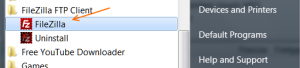
FileZilla FTP Client icon highlighted in Windows menu, illustrating installation process for FileZilla software.

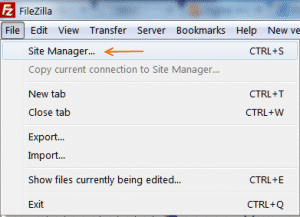
3.  Go to File–> Site Manager

FileZilla FTP client interface showing the "Site Manager" option under the "File" menu for configuring FTP connections.

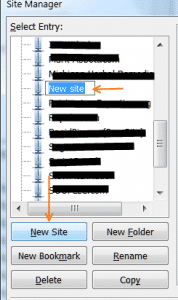
4. Click on New Site and input the name of the site

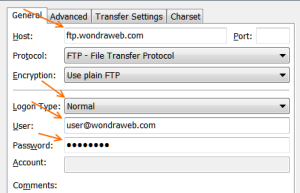
Site Manager window in FileZilla FTP client showing "New Site" option highlighted, illustrating steps for configuring FTP connections.FileZilla FTP client configuration interface showing fields for Host, Login Type, User, and Password, relevant for setting up FTP connections.5. Input the Host

6. Change the Login Type to Normal

7. Input the User and Password

8. Click Connect to save & test or OK to just save the site

Connect, OK, and Cancel buttons from FileZilla FTP client interface for file transfer configuration.

That’s all their is to installing and configuring the FileZilla FTP client. Happy uploading!
Share the Post: