
EDITOR’S NOTE: Using images to your articles is extremely important in order to drive clicks to your posts and pages, and back up your message. Having good images can also help you rank higher in image search results. In order to optimize your image SEO (and improve the overall accessibility of your website), you need to include alt text and title attributes. The alt tag is used by screen readers, which are browsers used by people with a visual impairment for example. What you need to know for SEO, is that the alt tag can also be read by Google’s crawlers, so it’s a great place to include target keywords. Alt tags are always required, title tags are not. Title tags are shown as a tooltip when you hover over the element, but only show up when people are using a mouse. Keep reading for a demonstration on how to add alt text and title text to your images on both WordPress and WooCommerce websites, while using Yoast SEO to make sure that they are optimized. If you have any questions about technical SEO or want us to take care of it for you, reach out to us at Prebuilt Sites or The BBS Agency. We’d love to help you out!
Adding images to your articles encourages people to read them, and well-chosen images can also back up your message and get you a good ranking in image search results. But you should always remember to provide your images with good alt attributes. Because alt text strengthens the message of your articles with search engine spiders and it improves the accessibility of your website. This article explains what alt and title attributes are and why you should optimize them.
Do you have an orange bullet for the Keyphrase in alt attributes check in Yoast SEO? Read how to turn that bullet green.
What are alt attributes and title attributes?
This is a complete HTML image tag:
<img src=“image.jpg” alt=“image description” title=“image tooltip”>
The alt and title attributes of an image are commonly referred to as ‘alt tag’ or ‘alt text’, and ‘title tag’. (Technically they’re not tags, they’re attributes, but you don’t need to worry about that). These attributes allow you to add textual descriptions of your image, which can help with both SEO and accessibility.
Alt text
The alt tag is used by screen readers, which are browsers used by people with a visual impairment for example. These screen readers tell them what is on the image by reading the alt tag. It’s not just screen readers that read alt text, though. Search engines like Google also use this information to understand the context of an image; to find out what an image shows, and what its purpose is.
Each image should have an alt text. Not just for SEO purposes, but also for accessibility. Because people using a screen reader will otherwise not know what the image is about.
Title text
The title attribute is shown as a tooltip when you hover over the element. A title attribute is not required. What’s more, most of the time it doesn’t even make sense to add it. They are only available to people who use a mouse (or other pointing devices) and the only one case where the title attribute is required for accessibility is on <iframe> and <frame> tags.
If the information conveyed by the title attribute is relevant, consider making it available somewhere else, in plain text. And if it’s not relevant, consider removing the title attribute entirely.
But what if an image doesn’t have a purpose?
If you have images in your design that are purely there for design reasons, you’re doing it wrong. Those images should be in your CSS and not in your HTML. If you really can’t do anything about these images being there, give them an empty alt attribute, like so:
<img src="image.png" alt="">
The empty alt attribute makes sure that screen readers skip over the image. If you’re using WordPress, you can leave the field for “Alt text” in the Image settings empty.
Alt text and SEO
Google’s article about images has a heading “Use descriptive alt text”. This is no coincidence. Google places a relatively high value on alt text. They use it to determine what is on the image but also how it relates to the surrounding text. This is why, in our Yoast SEO content analysis, we have a feature that specifically checks that you have at least one image with an alt tag that contains your focus keyphrase.
What does the ‘keyphrase in image alt attributes’ check in Yoast SEO do?
The keyword in image alt attributes assessment in Yoast SEO includes two checks: a) if there are images in your post and b) whether these images have an alt text with the focus keyphrase. Firstly, you should always think about adding images to your posts and pages, as these make your content more descriptive and appealing. But by also adding alt text to your images, you provide users of screen readers and search engines with a textual description of what’s on that image. This improves accessibility and if you include your keywords, your chance of ranking in image search too.
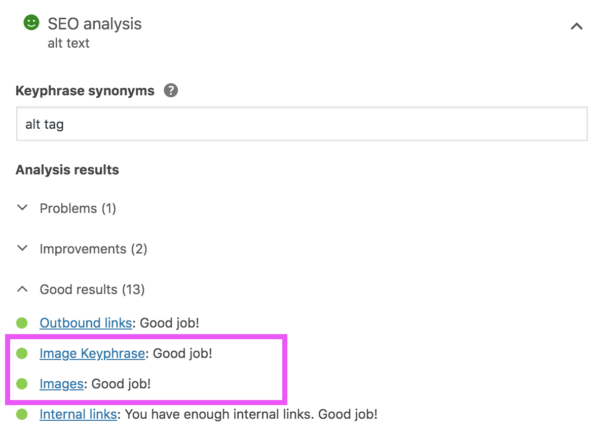
Photo: Yoast
We’re definitely not saying you should spam your focus keyphrase into every alt tag. You need good, high-quality, related images for your posts, where it makes sense to have the focus keyword in the alt text. Here’s Google’s advice on choosing a good alt text:
When choosing alt text, focus on creating useful, information-rich content that uses keywords appropriately and is in context of the content of the page. Avoid filling alt attributes with keywords (keyword stuffing) as it results in a negative user experience and may cause your site to be seen as spam.
If your image is of a specific product, include both the full product name and the product ID in the alt tag so that it can be more easily found. In general: if a keyphrase could be useful for finding something that is on the image, include it in the alt tag if you can. Also, don’t forget to change the image file name to be something actually describing what’s on it.
Assessment scores
If your content has more than 4 images, you’ll only get a green bullet if the percentage of images with the keyphrase in the alt text falls within 30 and 70%. When you use the keyphrase in more than 70% of your images, your bullet will turn orange to prevent you from keyword stuffing. If you have Yoast SEO Premium, the plugin will also take synonyms you’ve added to your keyphrase into account.
Image alt tags assessment in WooCommerce SEO
Yoast SEO isn’t the only one of our SEO plugins with an assessment that focuses on the images on your page. We’ve also included these checks in our WooCommerce SEO plugin to help people fully optimize their product pages. This version of the assessment comes with a few changes that are specifically focused on product pages. One of these changes is the addition of the image alt tags assessment, which checks if all images on the page have alt tags. Because all the images you use on your product pages should be relevant images of your product. Images that need to have a description.
alt and title attributes in WordPress
When you upload an image to WordPress, you can set a title and an alt attribute. By default, it uses the image filename in the title attribute. And if you don’t enter an alt attribute, it copies that to the alt attribute. While this is better than writing nothing, it’s pretty poor practice. You really need to take the time to craft a proper alt text for every image you add to a post. Users and search engines will thank you for it.
How to add alt attributes in WordPress
WordPress makes it really easy to add alt attributes. Follow the steps below to add them to your images. Your (image) SEO will truly benefit if you get these details right. People using screen readers will also like you all the more for it.
- Log in to your WordPress website.
When you’re logged in, you will be in your ‘Dashboard’.
- Open the post or page to edit the content.
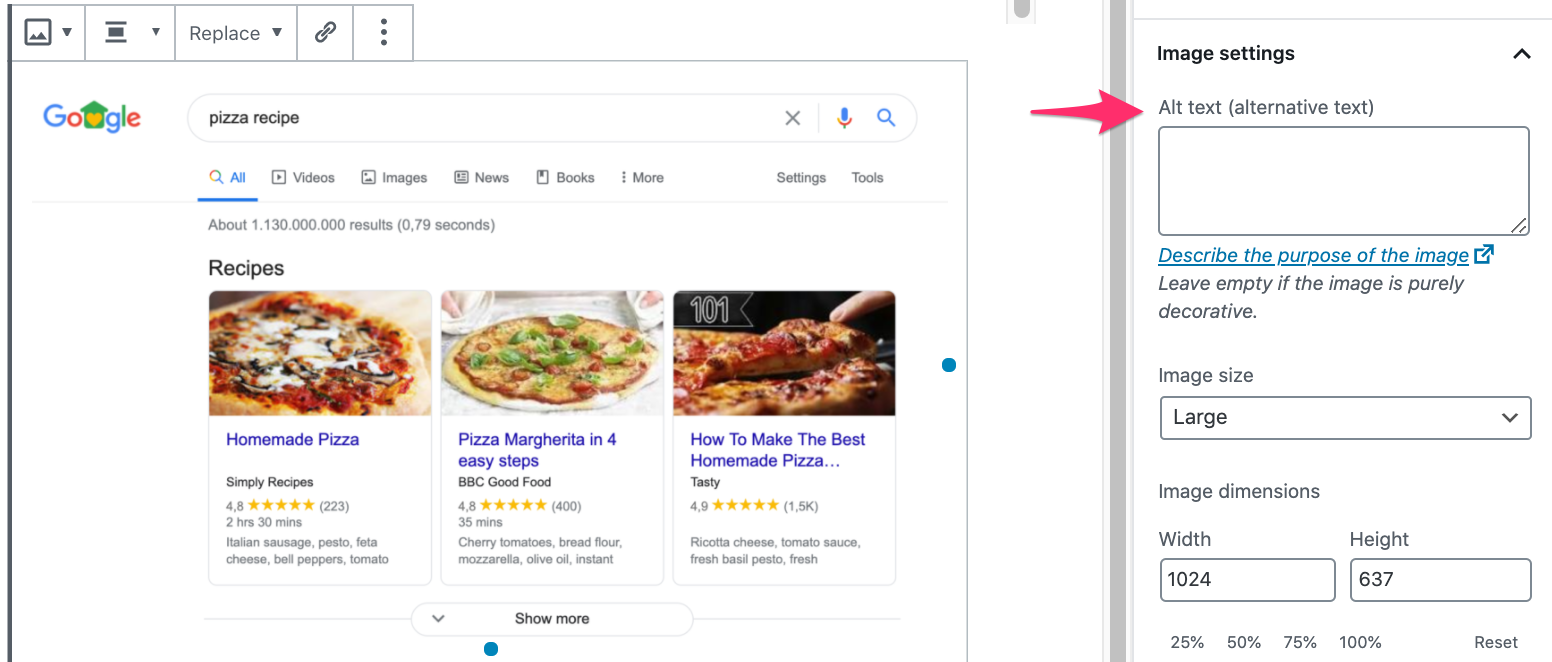
- Click on the Image block to open the Image settings in the Block tab of the sidebar.
You will see the Image settings appear in the Block tab of the sidebar.

Photo: Yoast
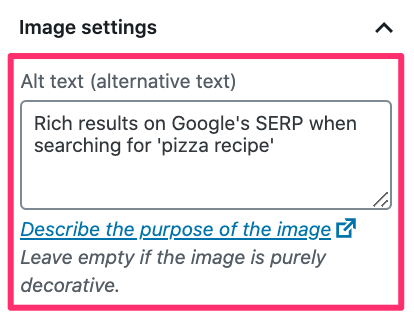
- Add the alt text and the title attribute.
Photo: Yoast
- Click ‘Update’.
Click the ‘Update’ button in the upper right corner.
Read more about image SEO
We have a very popular (and longer) article about image SEO. That post goes into a ton of different ways to optimize images but is relatively lacking in detail when it comes to alt and title tags — think of this as an add-on to that article. I recommend reading that article if you want to learn more good practices on image SEO.
Read more: Optimizing images for search engines »